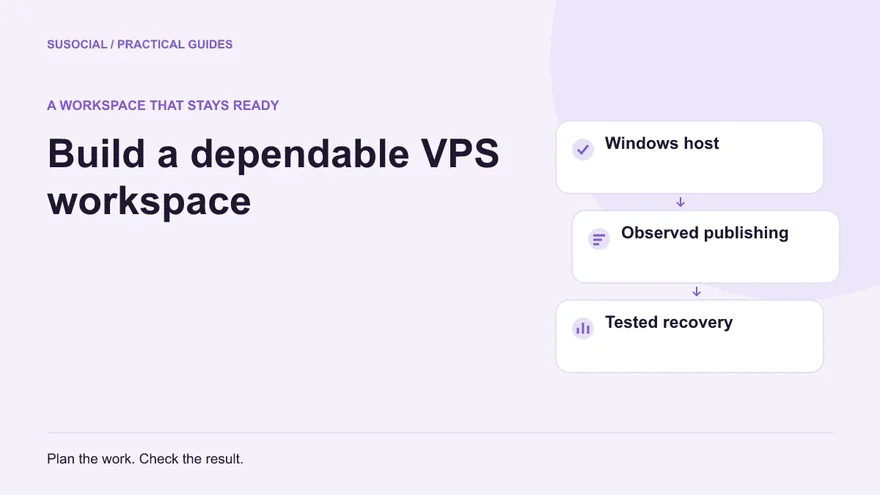
A Windows VPS gives your social media workspace a place to run when your own laptop is closed. That is useful for a publishing calendar that spans different time zones, a remote team, or campaigns that should not depend on one person’s home connection.
The important decision is not simply which server to rent. You need to know what happens when the remote session disconnects, Windows restarts, a scheduled post fails, or a colleague needs to take over. This guide builds the setup around those operating questions so the server becomes a dependable workspace rather than another machine nobody checks.
Decide what will run on the server
Write a short workload description before comparing hosting plans. Include the social profiles you own or manage, the platforms involved, the media you publish, the busiest posting windows, and the people who need access. Twenty quiet profiles can require less work than a smaller set publishing large videos at the same time. Profile count is therefore an incomplete sizing shortcut.
SuSocial is Windows desktop software. A compatible Windows VPS can host the application, but buying hosting does not turn the application into a cloud service. Windows, SuSocial and the network connection must remain available for scheduled work to execute. Your VPS provider supplies the machine; you still operate the workspace.
Start with the SuSocial system requirements. The guide explains that resource needs depend on the accounts and tasks being run, and that browser concurrency can be reduced on a constrained machine. Use its examples as a starting point, then measure your actual workload rather than multiplying a fixed RAM figure by every profile.
Document three practical requirements: how long publishing can be interrupted, how much recent configuration you could afford to lose, and who receives an alert. A daily editorial account and a time-sensitive launch may need different recovery arrangements even if they use similar hardware.
Choose hosting for the workload you can explain
Look for a Windows edition that is currently supported by the host and compatible with your intended SuSocial installation. Check the provider’s license arrangement, storage allowance, backup offering, geographic location and upgrade process. A low advertised monthly price can exclude Windows licensing or charge separately for backup space.
Ask how CPU resources are allocated. Shared virtual processors may be suitable for light publishing, while sustained browser activity can expose noisy-neighbour contention. You do not need an elaborate benchmark to spot a poor fit: compare resource behaviour during a representative publishing window with behaviour when the machine is idle.
SSD storage matters for application startup, browser data and backups. Leave room for media and retained recovery copies as well as the application itself. A server that appears spacious on installation day can become difficult to maintain after months of video uploads and logs.
Check outbound traffic limits and any restrictions on running desktop applications. Confirm how the provider handles support, lost administrator access and emergency console connections. These details are more useful than an unsupported promise that a certain server specification guarantees uninterrupted social media publishing.
Secure access before adding client accounts
Create a named Windows account for the person operating the workspace, using an access model appropriate to your organisation. Keep administrator privileges for maintenance rather than routine browsing where practical. Store credentials in an approved password manager and record who can request access from the hosting provider.
Use the provider’s recommended protected remote-access route, such as a gateway, VPN or restricted connection policy. Avoid making a broadly accessible RDP endpoint your entire security plan. Keep Windows updates and protective controls enabled; schedule maintenance deliberately instead of disabling updates because a restart once interrupted a campaign.
Test remote access from the computer you will actually use. Check clipboard transfer, display scaling and media upload methods. If the connection feels sluggish, first lower unnecessary visual effects or use a suitable display resolution. Do not immediately assume that a slow remote screen means SuSocial itself lacks CPU or memory.
Keep a second recovery route, preferably the provider’s authenticated console. Test that it opens before you depend on it. Store a concise recovery note outside the VPS so you can find the server address, provider account and escalation contact when the server is inaccessible.
Install, configure and test one complete publishing path
Install the application from the official source and complete any required prerequisites. Record the installed version, installation location and date. If your organisation already has a working SuSocial setup, make a supported backup before moving it and check migration guidance rather than copying individual database files while the application is running.
Add one authorised social profile first. Confirm its ownership, login method and recovery contact. The Social Profiles guide is the relevant reference for managing profiles inside SuSocial. A successful server login is not the same as a successful platform login, so test both separately.
If the account needs a proxy, use the Proxy Manager instructions to add and verify a compatible connection before assigning it. Keep the mapping understandable. A proxy is a routing choice, not a substitute for account permission or a guarantee against platform restrictions.
Prepare a small, approved test post with the same media type your normal workflow uses. Check the destination, caption, link, image crop and scheduled time. After it publishes, open the actual platform page and verify the result. A status indicator inside the application is useful, but the published output is the final acceptance check.
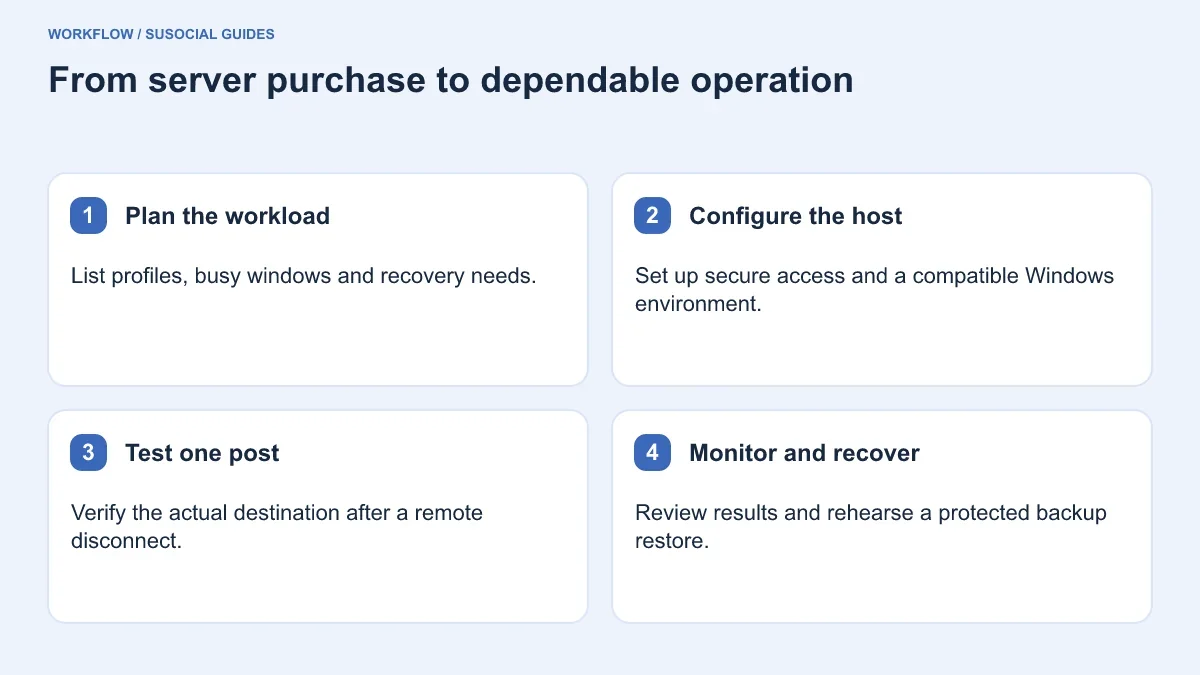
Understand disconnecting, signing out and restarting
Closing a Remote Desktop window usually disconnects you from the remote session; signing out ends that user session. These are different operations. Microsoft’s Remote Desktop client guidance explains that applications remain active while the remote session remains active after a disconnect. Server policies can still impose session time limits, so verify your host’s configuration.
Run an observed test: leave SuSocial open, disconnect from RDP, wait through a scheduled test window, then reconnect. Confirm that the same session and application remain available and that the intended task completed. This checks your real configuration rather than relying on assumptions about how every Windows server behaves.
Next test a planned restart. Record which components return automatically and which require intervention. Do not assume a desktop application resumes merely because Windows has booted. Keep a restart checklist that includes login, application startup, profile status, campaign status and a check for missed or duplicated posts.
Treat a missed publishing window as an editorial decision. A time-sensitive announcement may need to be cancelled rather than posted late. An evergreen tutorial may be rescheduled. Avoid restarting every delayed job at once without checking whether it is still useful and whether another operator already published it manually.
Establish monitoring that leads to an action
A reachable server can still have a stopped application, an expired login or a full disk. Monitor at several levels: machine availability, resource pressure, application state and actual publishing outcomes. Decide which checks you can perform automatically and which belong in a short human review.
For a small workspace, a daily opening checklist can be effective. Review the previous window’s publishing results, current profile statuses, storage headroom and upcoming content. For a larger operation, add responsibility for each shift and a clear handover. An alert that goes to an unattended inbox is not a recovery process.
When a task fails, capture the destination, scheduled time, error message and last successful run before changing settings. Look for a pattern: one destination suggests an account or content issue; many destinations at the same moment suggest a shared dependency. This distinction helps avoid unnecessary changes to a healthy server.
Keep a change log. A server upgrade, application update, password reset or proxy replacement can explain a later problem. Record the change and its intended effect in ordinary language so another operator can reconstruct what happened without reading a long chat history.
Back up the workspace and rehearse restoration
Use SuSocial’s documented Error/Backup controls to plan application backups, retention and recovery. Decide how frequently configuration changes justify a new backup. Keep a protected copy outside the same failure domain as the running VPS where your organisation’s handling rules allow it.
A provider snapshot and an application backup solve different problems. A snapshot can restore a machine state, while an application backup may be better suited to recovering the workspace. Understand whether a snapshot is crash-consistent or application-consistent and what the provider actually guarantees. Do not treat a visible backup filename as proof of successful recovery.
Rehearse restoration in an isolated environment without allowing two active copies to publish from the same campaign. Verify settings and data first, then deliberately choose the instance that will resume work. Record the time needed and any missing prerequisites. That turns an estimated recovery target into a tested operating procedure.
For a worked example, imagine an agency publishing weekday educational posts for six clients. It can start with one VPS, a named operator, a morning results review, a protected application backup after major campaign changes, and an agreed maintenance window. If publishing begins to queue during the busiest hour, the team measures concurrency and resource use before upgrading. This is a manageable service design, without pretending that a server purchase alone guarantees results.
Questions to settle before launch
Can I turn off my own computer?
Yes, once the work is running on the VPS and your local computer is only the remote-control client. Confirm this with the disconnect test. The remote machine, application and relevant session must remain active; your laptop staying off is not evidence that the remote process is healthy.
Does a VPS include proxies or platform access?
Not automatically. Hosting, application licensing, optional proxy services and platform credentials are separate items. List each dependency and its owner. This prevents a renewal or access problem from being mistaken for a publishing bug.
When should I upgrade the server?
Upgrade when measurements show sustained resource pressure that affects work after simpler scheduling or concurrency adjustments have been considered. Keep the workload and acceptance tests the same before and after the upgrade. The useful outcome is reliable completion of approved tasks, not a larger specification on an invoice.
A good VPS setup is easy to operate, inspect and recover. Begin with one verified publishing path, make interruption behaviour predictable, and add profiles only after the process works. That gives SuSocial a practical foundation for ongoing scheduling while keeping the people responsible for the content firmly in control.

Leave a Reply